Quickstart
Connect your agent, review an example, and approve rules of your own.
By the end, you will have reviewed a draft and know how to activate your own rules. This guide does not place a trade. It uses Hyperliquid perpetuals.
You need an agent with remote MCP and browser sign-in support, plus Pakt access. Paper-trading access is enough to draft and activate rules; live authorization requires full access and a separate venue client to submit orders.
1. Set Up Your Account
Open Get started and sign in.
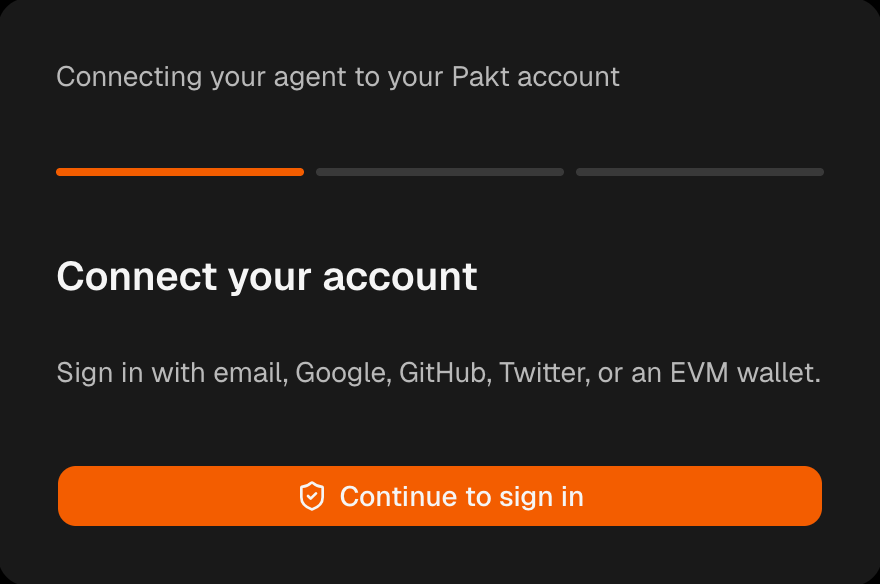
- Select Approve restricted execution signer when prompted to set up your Pakt signer. You control the Pakt signer; the separate restricted execution signer can sign only actions that pass Pakt's checks.
- For full-access accounts, select Approve Hyperliquid agent. Your existing Hyperliquid wallet approves the wallet underlying your Pakt signer as its trading agent.
- Run the installer shown in onboarding, open the alpha testing guide, then select Continue to dashboard.
If you see You're on the early-access list, tool access is still pending. You can submit the optional use-case form for earlier-access consideration, then return later and select Check access again. Paper trading only accounts can continue this guide but cannot request live authorization. See Troubleshooting.
2. Connect Your Agent
For Claude Code or Codex, run the Pakt installer:
curl -fsSL https://usepakt.ai/install.sh | bashYou can read the installer first. The installer adds or updates the Pakt plugin for supported agent CLIs already on your machine. The plugin includes the remote connection and agent guidance; it does not install a trading client or create wallet authority. Follow its instructions and complete browser sign-in with the same account you used above. Start a new agent session if the tools do not appear.
For another MCP client, add a remote server with this URL and complete its OAuth sign-in:
https://api.usepakt.ai/mcpTo confirm that your agent is connected, ask:
Show me the Pakt templates available to my account.You should see named templates, such as Conservative HL Perps. This confirms that the connection works, not that live trading is enabled. If the tools are missing, follow Connection problems.
3. Try a Draft Without Activating It
Ask your agent:
Compile the perps-conservative template with its unchanged example limits.
This is a walkthrough, not a personalized trading policy.
Show the readable rule groups and explain an allowed action and a refusal.
Do not prepare activation, activate, or trade.
The agent should return the grouped rules and one Pakt root, which identifies the compiled draft. The current example includes a $100 trade-size cap and a 2× account-leverage threshold. A $101 opening trade fails that size cap; a $100 trade passes that check but still has to satisfy every other applicable rule.
Drafting neither stores nor activates the Pakt. The example limits are not a recommendation. Before using it, tell your agent your intended allocation, markets, and exact limits or risk preferences. Have it compile your revisions and review the final rules.
4. Approve It
Prepare this Pakt for activation and give me the dashboard review link.Only continue when the final rules match your intent. Open the link, review them again, and approve with your Pakt signer. The review expires after six hours; ask for a new link if needed. The activation guide shows what to check.
Ask your agent to list your Pakts and confirm that the same root is active. You have now approved rules, not an order. Creating a draft or opening the link does not activate it.
5. Choose Your Next Task
- Trade with Hyperliquid: prepare an order, review it, and track authorization separately from its venue result.
- Review activity: inspect and verify a receipt after an action has been checked.
- Stop this Pakt: permanently disable its root with a separate Pakt signer approval.